



An auditor asks a simple question: who approved this person's access to the production database, and when? You know the access is correct. You set it up. The person is still on the team and still needs it. The trouble is the proof. The approval happened in a hallway, or on a call, or in a thread that has since scrolled out of reach. You remember saying yes. You cannot show the yes.
This is the gap that turns a five-minute audit answer into a half-day archaeology project. The access was right. The decision was sound. The record was never captured in a place you could point to later. So you reconstruct it from memory, ask a colleague to confirm, and hope the timestamps on the account creation line up closely enough to tell the story.
Access decisions are some of the highest-stakes calls a small team makes, and they are the ones most likely to live nowhere. The Cloud Sentry portal handles approvals so the decision and its proof are the same act. You say yes once, and the record writes itself. How that works from both sides of the link.
When an approval is required
Most support requests do not need a sign-off. A password reset or a quick question gets picked up and handled. Approvals exist for the narrower set of changes where one person's yes carries real weight:
- Granting a new hire access to a sensitive system.
- Removing an account from a shared mailbox or a production resource.
- Releasing data to a third party on your behalf.
For those, an internal note in a ticket is not enough. Cloud Sentry collects a direct yes or no from a named approver and keeps it on the record. The approver is usually a customer admin on your roster, the named owner of the system in question, or whoever the requester listed on the form. If you got a note from Cloud Sentry asking you to decide on a request, you are that person for this one.
Approving from the email link
Some approvers do not have a portal account: an external auditor, a vendor admin, a board member, a contractor. For them, Cloud Sentry skips the sign-in step and sends a signed one-click link straight to the inbox. The link is tied to that specific request, so no password or account setup is needed.
The email shows the request title, the submitter, and a single Review and decide button. Before you click, confirm three things: the sender is Cloud Sentry Support, the company name matches the customer you expect to approve for, and the submitter is someone you recognize. If any of those are off, do not click; reply and ask Cloud Sentry to confirm.
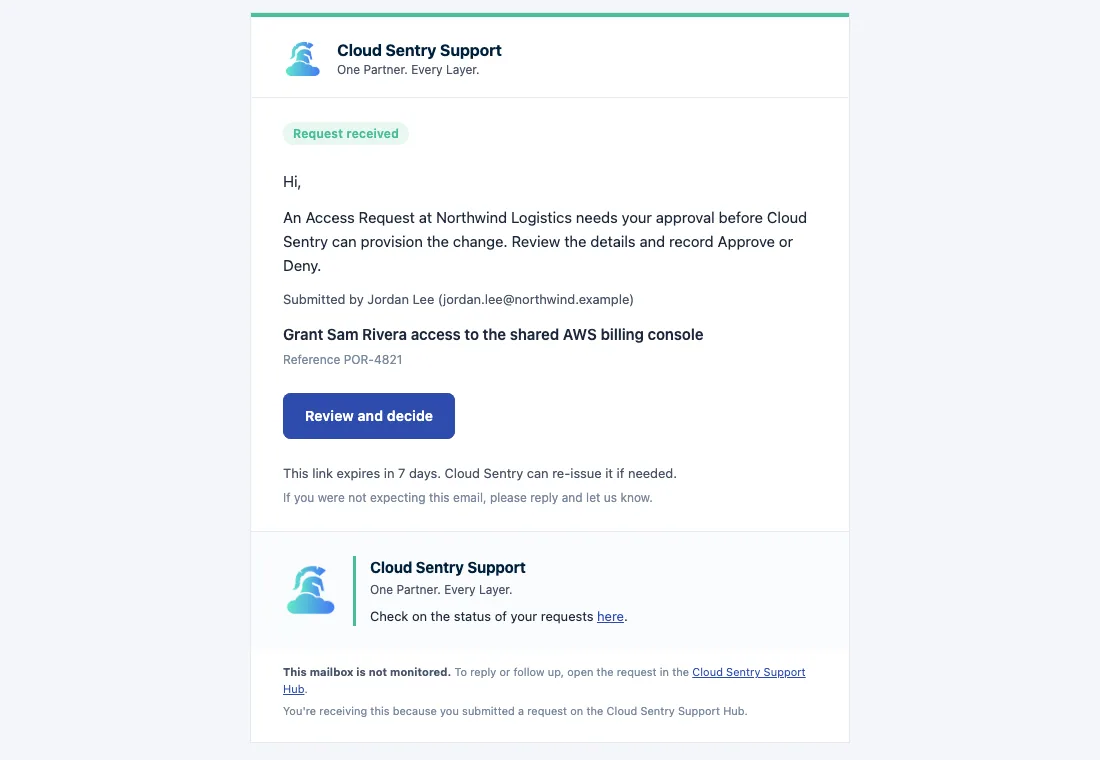
The button opens a page that shows the full request and three actions: Approve, Deny, and Delete. You do not sign in. The token in the URL authenticates you, and it is single-use, so opening the link twice will not let you double-vote. Your decision is logged with your email, a timestamp, and any note you add.
Approving from inside the portal
If you are a customer admin with a portal account, the in-portal flow is richer because the portal already knows who you are. Click Review and decide in the approval notice, sign in if you are not already, and you land on the request page with three things added on top of the normal view: an Approval pending banner, an approval panel with Approve, Deny, and Delete, and the full request detail so you can see what you are deciding on.
Read the description and any attachments first. If something is unclear, post a reply on the thread and come back to the panel once the submitter responds. The decision is yours to make once, and it is worth making it on full information.
What Approve, Deny, and Delete each mean
The three buttons are not interchangeable, and the difference matters for the record:
- Approve when the change is good as filed. The panel asks for a short note, optional but useful. Confirm, and the request moves into the Cloud Sentry work queue. The submitter sees the approval within a minute.
- Deny when the change should not happen as filed. A reason is required; Cloud Sentry does not record silent denials. The request closes as denied and the submitter gets your reason by email.
- Delete only when the request should not exist at all, a mistaken filing or content that should never have been pasted in. Approve and Deny are the right tools nearly every time.
Whichever you pick, Cloud Sentry logs who decided, when, and any note attached. That row does not go away, even after the request closes.
Why the trail is the point
A decision you cannot show is a decision you have to defend from memory. The approval and its proof should be the same act, captured once.
The reason this design matters is the reason SOC 2 work tends to feel like suffering when it is bolted on after the fact. SOC 2 is paperwork with consequences, and the evidence an auditor wants should fall out of running the environment properly, not get assembled in a panic the week before the audit. The American Institute of Certified Public Accountants maintains the SOC 2 framework, and the criteria that matter here are its logical and physical access controls, listed as CC6.1 to CC6.8 in Microsoft's SOC 2 control mapping (accessed September 2026). An approval captured at the moment of decision is exactly the kind of evidence those criteria expect.
When every access decision lands as a dated, attributed record, the audit question stops being an investigation. The auditor asks who approved this and when, and you point at the row. The access was right, the decision was sound, and now the proof sits in the same place as the work.
So the next time you grant someone access to something that matters, ask yourself the question the auditor will ask a year from now. You know you said yes. Can you show it?